A business not showing on Google Maps is only one of the problems behind the words “I couldn’t find you on the map”. The business may not appear under its name. The pin may be in the wrong place. Or the map may lead to the correct building but not to the door customers need.
Before changing everything at once, ask what happened. A caller who cannot see the profile needs a different fix from someone standing at the wrong gate. Work through the journey in order and keep a note of the point where it breaks.
First check: can people see the profile?
Search for the business name and town as a customer would. Try on a phone you do not normally use to manage the profile. Can you see the right name, address, category and contact details? If another business with a similar name appears, check whether the sign and online name match.
Open the profile you manage and check its status. If it needs verification or has a notice about a problem, deal with that first. Do not create a second listing merely because you cannot find the first one in a particular search.
Google’s guidelines ask businesses to represent their real-world name and location accurately and generally to avoid duplicate profiles for one business (Google’s business representation guidelines). Keep a record of any change you make so you can see what solved the problem.
Ask somebody who has not visited before to search for the exact business name and then a simple category and town, such as a café in Vlorë. Compare what appears. Finding the name only after entering the full address is different from not finding the profile at all; record the searches before you make changes.
Test the map pin and directions

If the profile appears, request directions from several nearby starting points. Does the route lead to the real entrance or stop on the wrong side of a wall? Check the official address and then the pin. If the address has no street number or cannot be found, Google explains how to adjust the pin (Google Business Profile address guidance).
Do not move the pin to a more popular street for visibility. It should help customers reach the actual business. If a road is missing or driving directions are wrong, report the route problem through the map rather than trying to disguise it with a false address.
Ask someone new to the venue to follow the directions. Notice whether they can see the sign at the point where the map says they have arrived. A map can finish in the right area and still leave the last short walk unexplained.
Show the last part of the journey
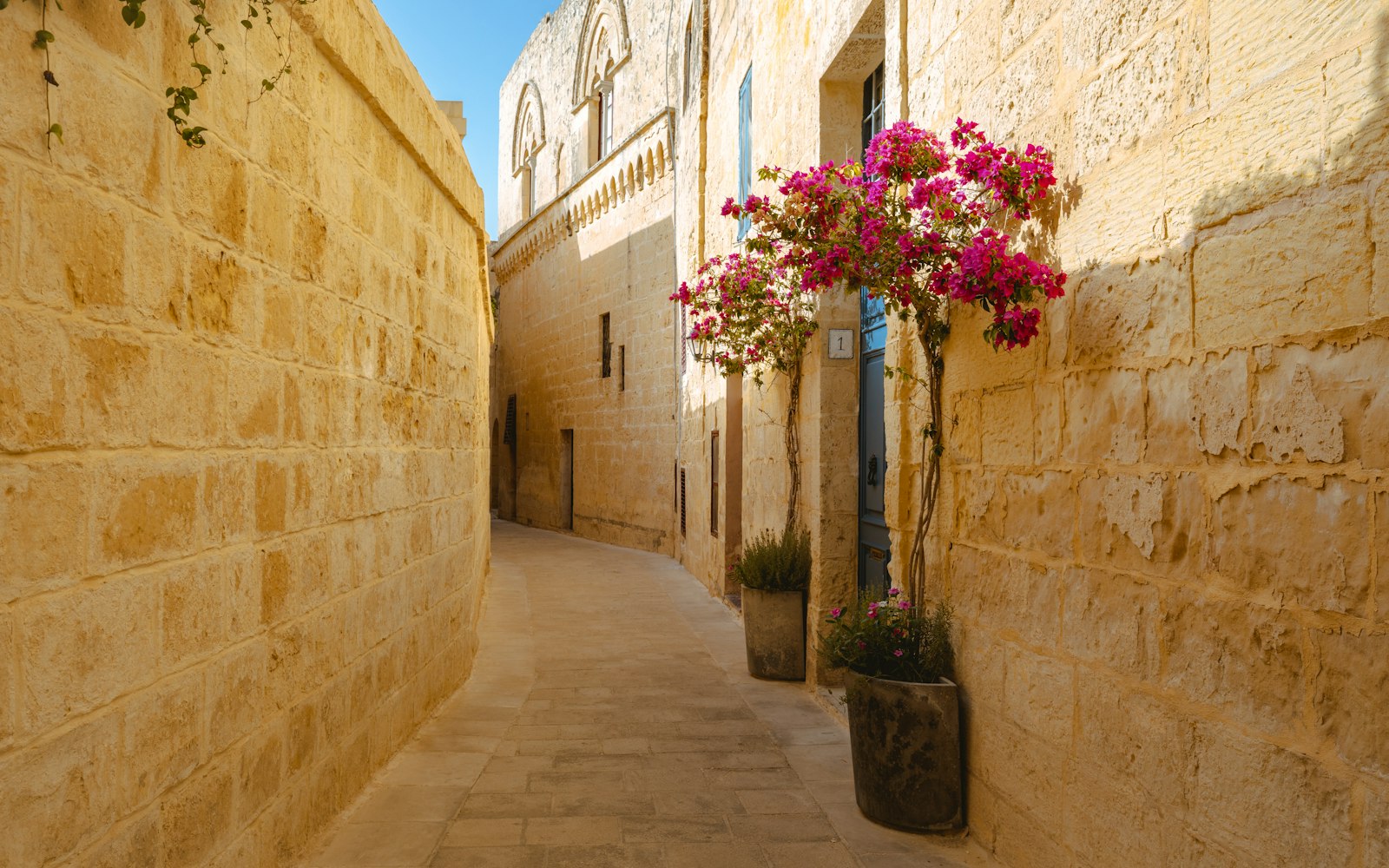
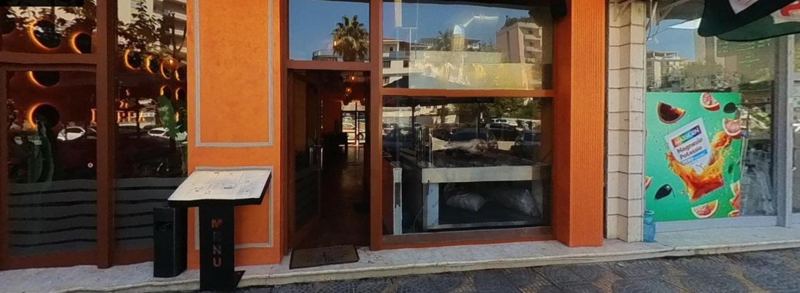
Take an exterior photograph from the direction a visitor approaches. Include the correct sign, turn or gate. If the business is behind another building, say that in a short arrival note and show the path rather than only the final doorway.
This does not replace an accurate pin or clear written directions. Think of it as an extra way to show the journey, particularly for a beach bar, hotel or restaurant reached along an unmarked path.
When you test directions, use the same approach a guest is likely to use, not the shortcut you take every day. Start at a nearby main road and follow the route on foot where appropriate. If it ends across the street or behind a wall, take a note of the last usable turning point.
Make every message agree
Compare the profile with your website, booking confirmations, social pages and any printed material. Are they all using the same address and entrance? An old photograph or outdated description can send a customer towards a door that is no longer used.
If staff often answer calls from lost customers, ask them to record the exact question. “Which road do I turn into?” and “Which of these two gates is yours?” point to different missing details. Update the information customers actually use, not merely the text you prefer.
Recheck after you change something
Changes may not appear in every place at once, and old material can remain elsewhere. Check the profile and directions again after an update, then test the same route on a phone. If the problem continues, document it clearly before trying another fix.
Keep the goal simple: a person should be able to find the right business, follow the route and recognise the entrance. Better visibility means little if a willing customer still cannot get through the door.
A clear arrival message can say, ‘From the seafront road, take the small lane beside the pharmacy; the entrance is on your left.’ That is more helpful than ‘We are easy to find.’ Use real landmarks only after checking they are still there and avoid putting private access details online.
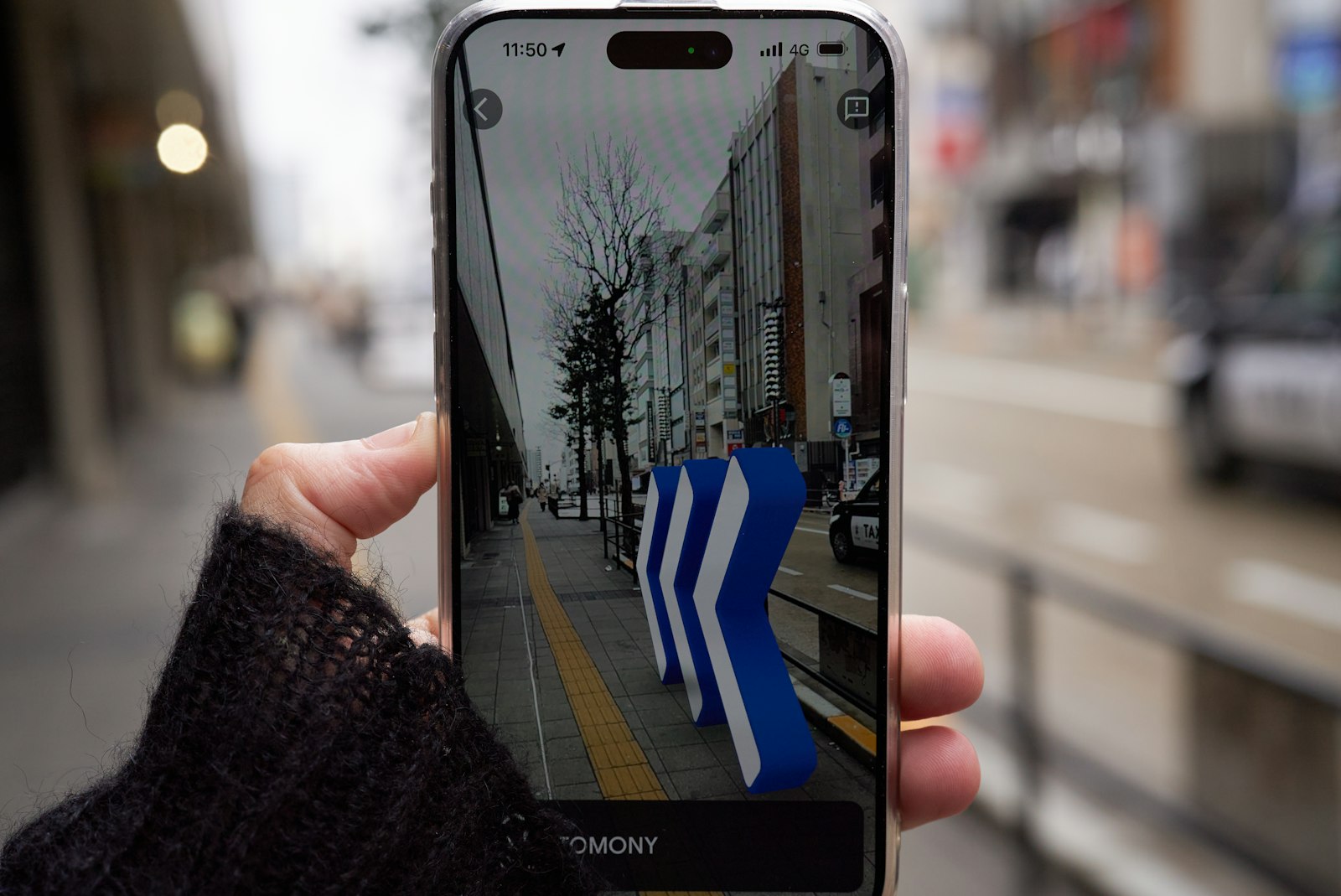
Vista 360 can review the Google Business Profile presentation and show a venue’s approach with useful exterior imagery. Where the map reaches the nearest road but not the doorway, a Street View walking route can connect that road to the entrance. For example, a hotel behind a courtyard needs its actual approach shown, not another generic lobby photograph; see the services page. Examples of finished work are in our portfolio.
If your customers can find the street but not your entrance, contact Vista 360 to discuss images and access mapping.
Leave a Reply